Visuals Rob Run ESP: Loot Filters, Radar & Profiles
Understand Visuals Rob Run ESP display choices, faction colors, loot value and rarity filters, container categories, radar controls and saved profiles.
The display controls in Visuals Rob Run External are divided into player visuals, world information and radar. Understanding those groups helps you compare the product and organize its settings without treating every visual option as the same feature.
Player information versus presentation
Player information includes names, distances, factions, equipped weapons, equipment icons, health and armor. Presentation controls determine how that information is drawn: boxes, skeletons, head circles, label backgrounds, font sizes and colors.
For example, enabling a player-name label and changing its text size are separate choices. Full or corner boxes also differ from model-highlighting materials. The published material choices include outlines and several glow colors, while box fill has its own opacity control.
Faction filters and visibility colors serve different purposes. A faction filter determines whether a category of player is included; its color affects how the included marker looks. The feature list names civilians, police, criminals, settlers, prisoners, hub players and an unknown category.
Loot categories, rarity and minimum value
Visuals lists three distinct ways to organize loot: item categories, rarity and minimum price. Categories describe what an item is, rarity describes its listed tier, and the minimum-price slider filters by value. Keeping these concepts separate makes the feature list easier to read.
- Categories: weapons, ammunition, armor, medical supplies, keys, lockpicks, valuables, money, equipment, grenades, cargo and bags.
- Rarity: common through exotic, plus items without a rarity.
- Value: optional item values and a minimum-price control.
- Appearance: icons, text backgrounds and capsule, text, diamond or classic label styles.
The published color order gives category colors priority over rarity colors and the global loot color. This explains why changing a global color may not change every label when category-specific colors are enabled.
Containers and vehicles have separate settings
Container controls include category filters, a render-distance setting and an option to hide empty containers. ATMs, safes, cash registers, cabinets, trash bins, shops, shelves and crates appear among the listed categories. Container colors and text sizes can be configured by category.
Vehicle markers use their own size, color and render-distance controls. Police-only filtering and spotted-passenger labels are listed separately. Exit boundaries form another display group, with their own marker color and size.
Radar and on-screen alerts
The radar has adjustable size, zoom, distance rings, background and grid colors. Player markers follow the faction palette. The listed size range is 120–300 pixels and the zoom range is 0.2–2.5×. Its position can be dragged while the menu is open and is saved locally.
Direction indicators and nearby-enemy or look-at-you alerts are additional elements, each with its own appearance settings. They should be evaluated separately from the radar panel when reviewing display options.
What profiles store
The product lists built-in presets and custom profiles, plus cloud configuration sharing for valid licenses. A cloud configuration ID points to settings; it is not a replacement for a license key. Personal interface options, the panic key and radar position are excluded from cloud sharing.
For the complete feature list and current plans, visit Visuals Rob Run External. Our feature overview covers aim and world-information groups, while the license and download guide explains delivery.
Gameplay screenshot
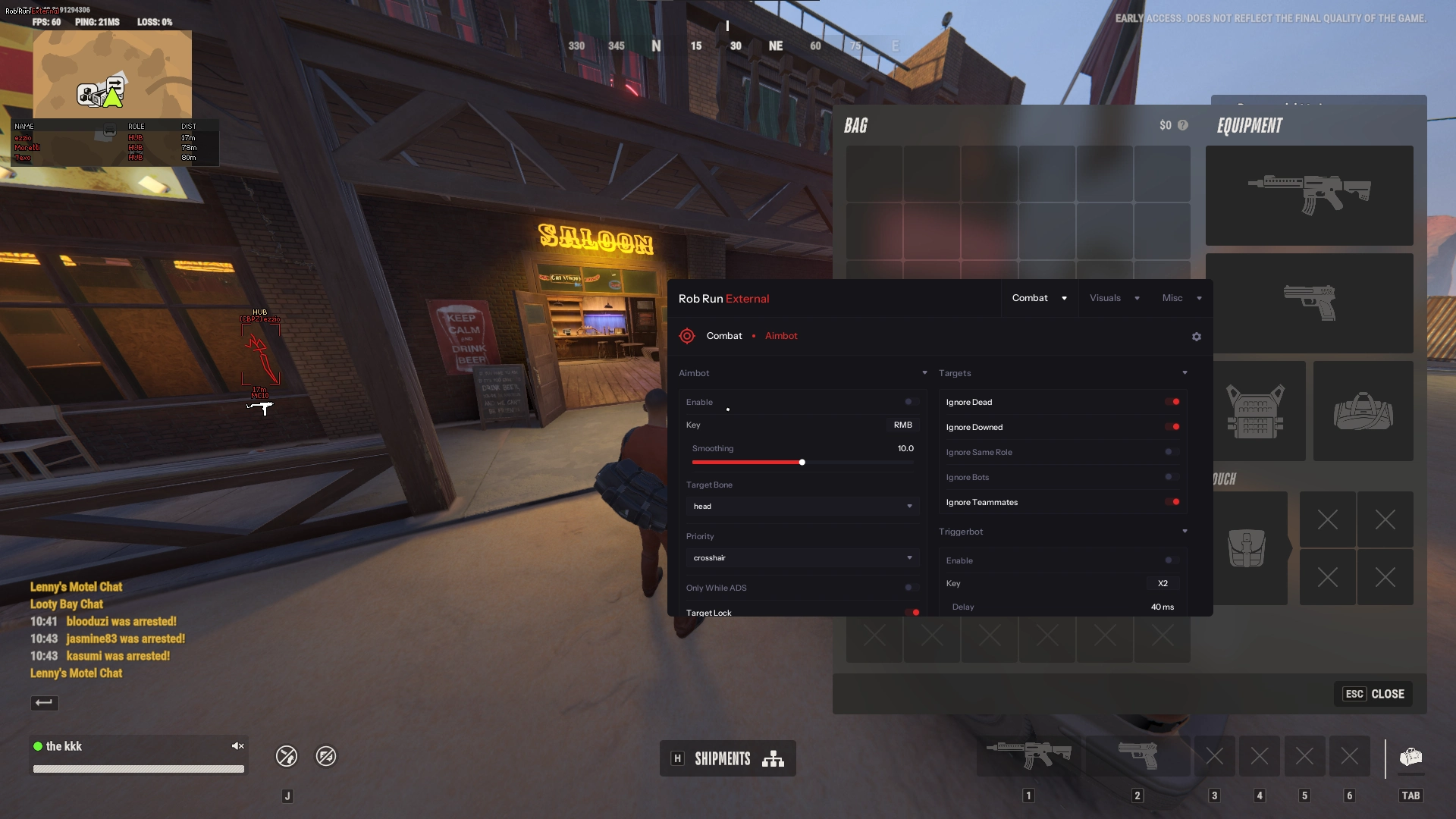
Customer-supplied Rob Run screenshot showing the on-screen interface and player visuals.
Published at Nov 20, 2026