Next SCUM
UNDETECTEDGeneral Information
- Game: SCUM
- Access options: 1 Day / 7 Days / 30 Days / 90 Days
- Delivery: Automatic license key
Aimbot & Weapon
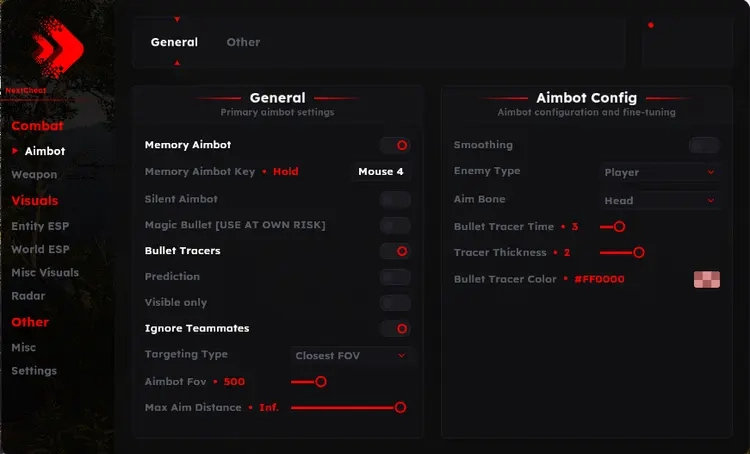
- Silent aim, memory aim, prediction and bone selection
- FOV, smoothing and maximum target distance
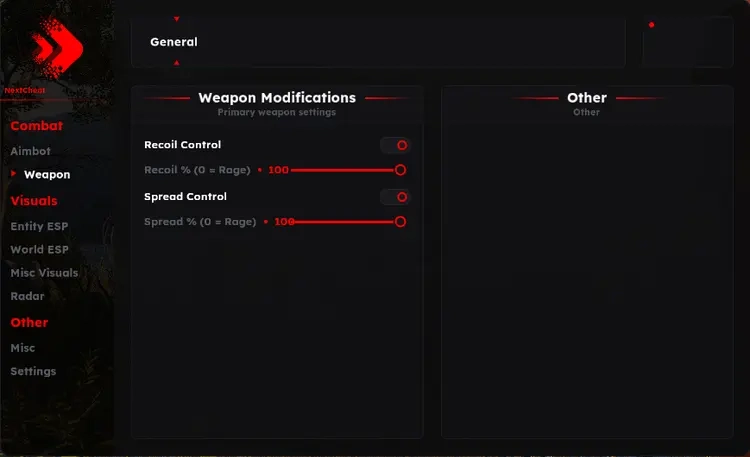
- Recoil, spread and weapon-shake controls
Player & World Visuals
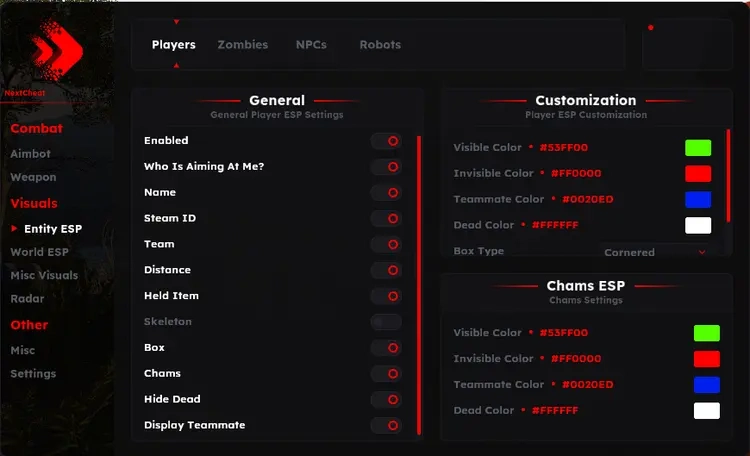
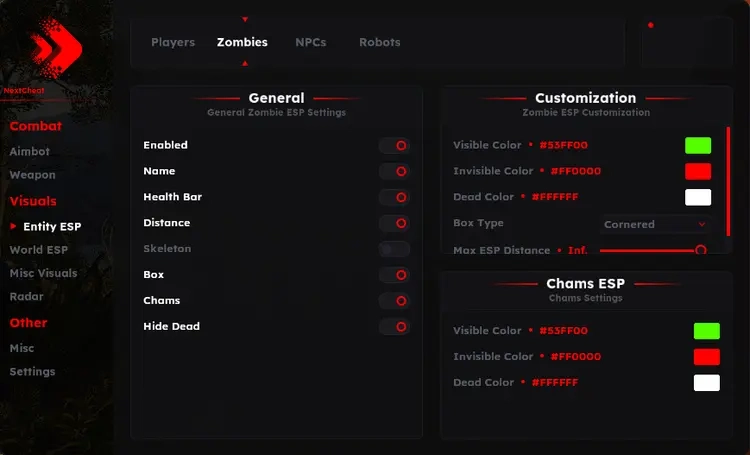
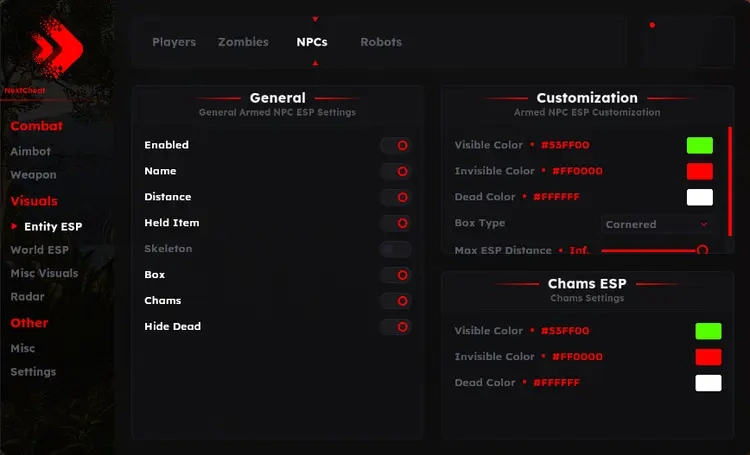
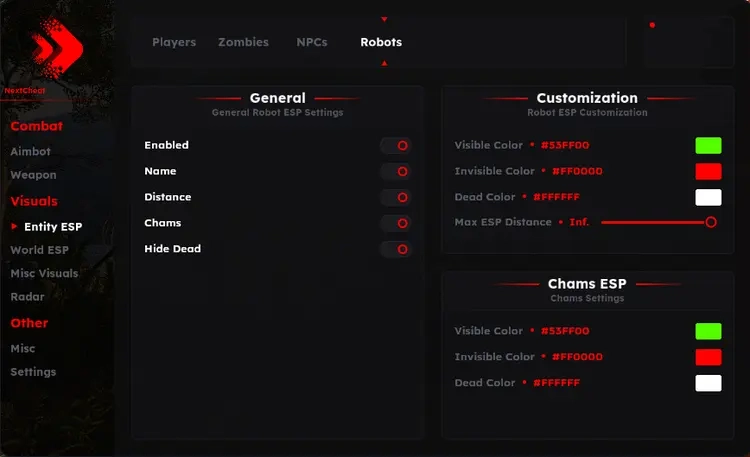
- Player, zombie, NPC and robot visuals
- Names, held items, distance, boxes and chams
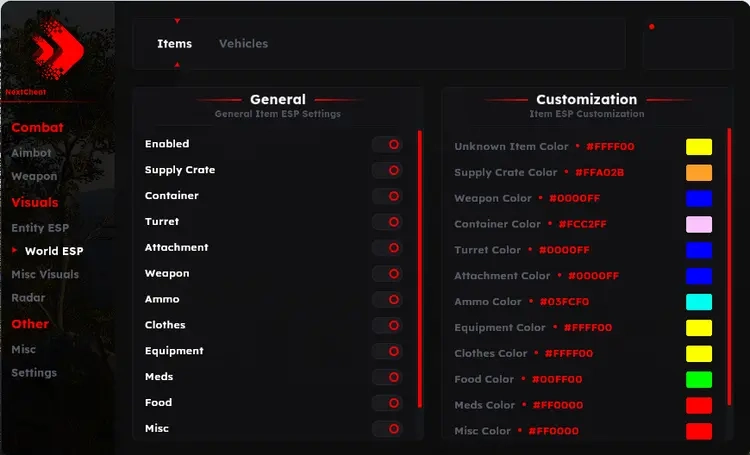
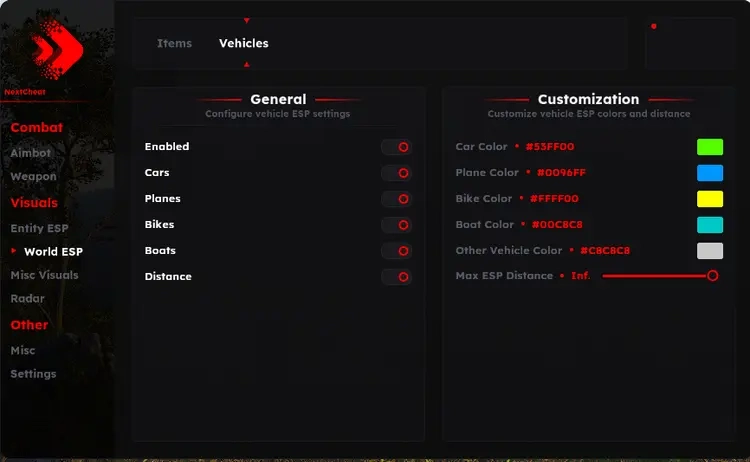
- Vehicle categories and detailed loot filters
- Admin, ammo, weapon-mode and nearby-entity indicators
Radar & Configuration
- Player, zombie and NPC radar with range controls
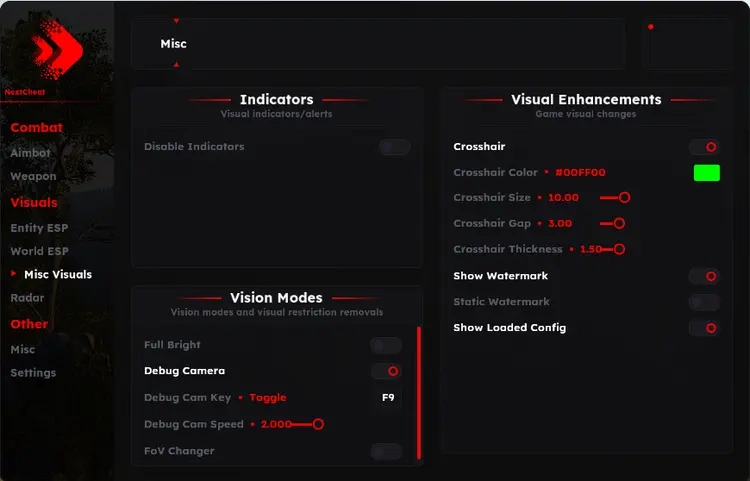
- Fullbright, camera FOV and debug-camera settings
- Save, load, import, export and hot-swap configurations
Requirements
- Operating system: Windows 10 / Windows 11 — check the setup guide for exact builds
- Processor: Intel / AMD
- See Setup Guide for launch order and product-specific requirements
Next SCUM — Setup Guide
Activate Next SCUM and wait for the loader countdown before starting the game.
Open the full NFAccount guide · Download loader · NFAccount support
1. Confirm the system requirements
The current setup information lists Windows 10 version 1903 or newer, or Windows 11 25H2. Do not assume that every later preview build is supported.
Hardware virtualization is required and this release lists Secure Boot off. Check the Microsoft Visual C++ and DirectX prerequisites. Ask NFAccount support about compatibility before changing unfamiliar firmware settings.
2. Register the purchased license
Close SCUM before starting. Download the current Next loader from this page, save it locally, and run it as administrator.
Register or activate in the loader using the license from your NFAccount order. Confirm that SCUM appears as an available product.
3. Use the Injection tab
Open the Injection tab and click Load. Keep SCUM closed while the loader prepares the session.
Wait for the displayed countdown to finish before opening SCUM. Starting the game early can leave the loader waiting for the wrong initialization stage.
Follow the loader’s current instructions for the interface key; no fixed menu key is specified in the available setup information.
4. Manage the session
Use Products to check your license, Risk Status to review the current release state, and Settings for configuration.
Save a profile after adjusting your options. Use the configuration export and import functions when moving your settings between supported installations; custom fonts are optional.
5. If the countdown or launch stalls
Record the stage and exact error, close the game, and check that you are using the current loader and a listed Windows build before trying again.
Give NFAccount support your order ID, Windows build, and whether the failure happens before or after the countdown. Keep the license hidden in screenshots.
NFA / PRODUCT GUIDE
Next SCUM: Features, Plans and Support
Use this NFA guide to compare the listing's features, system requirements and access options. Next SCUM has its own product description; the features and delivery instructions for another listing should not be assumed to apply.
Read the exact feature list
NFA's software catalog includes different games, providers and tool types. Read this product's feature description and screenshots to see what is listed for the current item. Visual options, aim settings, resource information and configuration controls vary between products. A product name alone does not establish that every feature found elsewhere is included.
Compare the system requirements
Check the supported operating system, processor, display mode and any USB or other prerequisites. Product-specific instructions take priority over assumptions from an older Rust, CS2 or other game listing. If a requirement is unclear, ask NFA before ordering so that you can confirm whether the published setup matches your computer.
Daily, weekly and monthly access
Available plans are shown in the variant picker. Some products use different periods or offer additional options; only the variants listed on this page are available for this purchase. Compare the full price for your chosen duration and review any activation or access conditions. Check the final checkout total and selected variant before payment.
Product status and updates
Review the current product status before buying and use the NFA status page to compare listings. A status label is a published product update, not a guarantee of future compatibility or freedom from restrictions. Game updates can affect availability. Contact support for clarification if the current information does not answer your question.
Delivery and support
After payment, consult the order page and delivery email for the key or instructions supplied with your purchase. Follow the guide for this exact product and plan. Keep your order reference when requesting help through NFA's support link, and do not post delivered keys, account details or payment information publicly.
Next SCUM — purchasing FAQ
Does every NFA software product include the same features?
No. Read the description of the selected product. Features differ between games, providers and tool types.
Where can I see current plans and access periods?
Use the variant picker on this page for the durations, prices and availability currently offered.
Is a product status label a permanent guarantee?
No. It describes the published current status. Compatibility and availability can change after updates.
How do I receive the product after payment?
Check the completed order page and order email for the delivered key, access information and product-specific instructions.
Where can I get help with my order?
Use NFA's support link with your order reference and product name. Keep delivered keys and account details private.