Mason External CS2
UNDETECTEDGeneral Information
- Supported game version: Steam
- Supported game mode: Windowed / Borderless fullscreen / Fullscreen
- Supported Windows OS: Windows 10 & 11 x64
- Supported anti-cheats: Valve Anti-Cheat
- Supported processors: Intel and AMD
- Video or screenshot invisibility support: No
Aimbot & Weapon
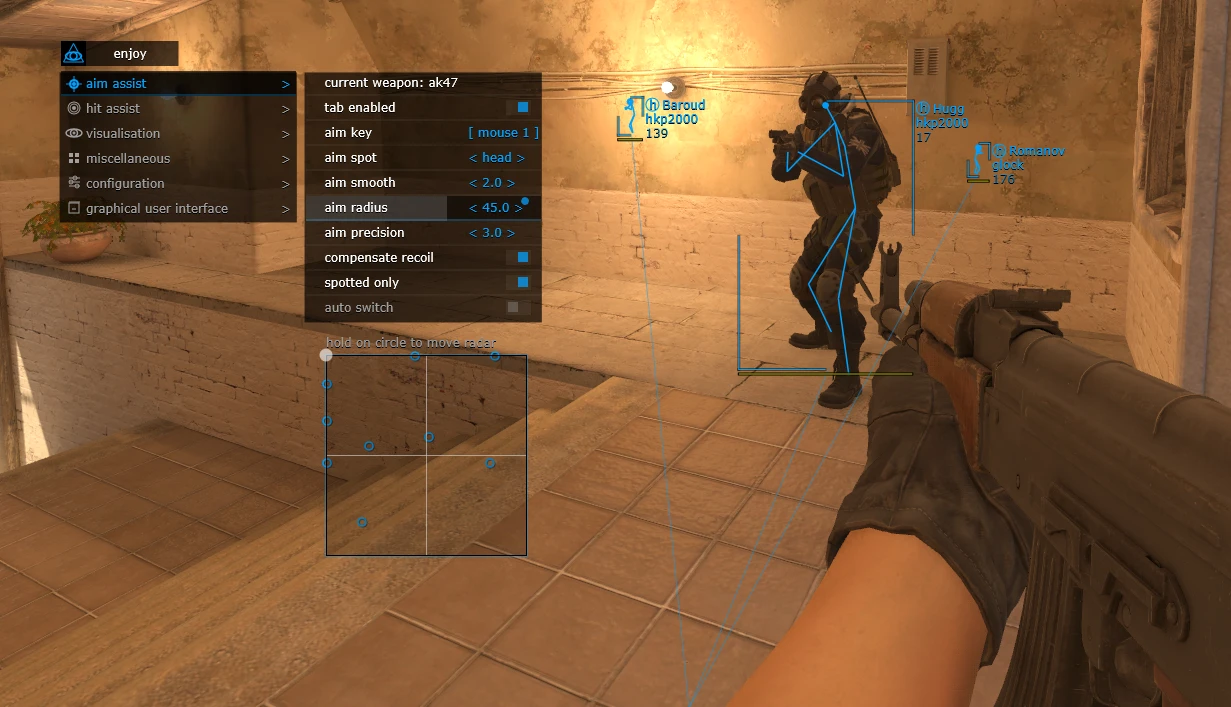
- Current weapon / Settings for the selected weapon
- Tab enable / Enable aimbot
- Aim key / Set the key for aimbot operation. To use the aimbot, the selected key must be pressed and held.
- Aim spot / Set the body part for the aimbot to target
- Aim smooth / Set the smoothness of the aimbot aiming
- Aim radius / Set the operating radius of the aimbot
- Aim precision / Set the aiming precision of the aimbot
- Compensate recoil / Enable weapon recoil compensation while the aimbot function is active
- Spotted only / Set the aimbot to work only on enemies visible on the radar
- Auto switch / Automatically switch targets after killing the current target
- RCS threshold / Allows adjustment of the level of recoil compensation by the aimbot
- Trigger delay / Allows adjustment of the delay before the triggerbot activates
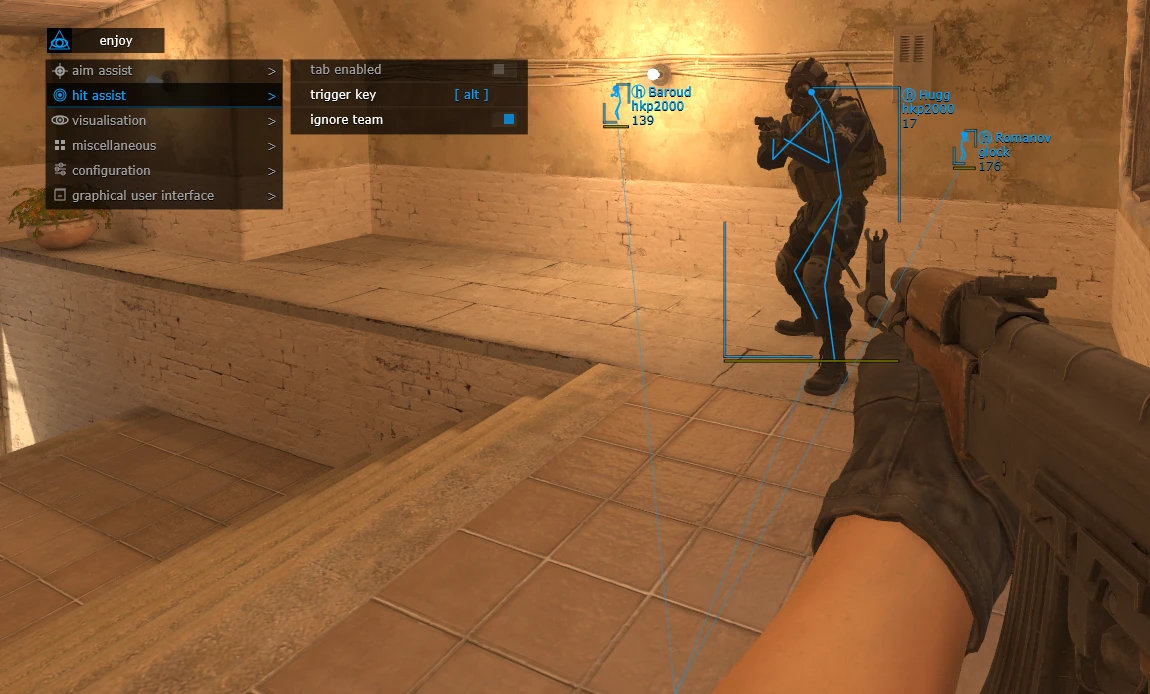
- Tab enable / Enable triggerbot- Trigger key / Set the key for triggerbot operation
- Ignore team / Enable the triggerbot to ignore your own team
Visuals
- Tab enable / Enable visual functions
- Show bounding box / Display a 2D box around players
- Show skeleton / Display player skeletons
- Show snaplines / Display lines to players
- Show player weapon / Display players’ weapons
- Show player health / Display opponents’ health
- Show player name / Display players’ nicknames
- Show player equipment / Display opponents’ equipment
- Show planted C4 / Display the location of the planted C4 and the time until explosion
- Show distance / Display the distance to opponents
- Ignore team / Enable ignoring your own team
- Ignore spotted / Enable ignoring “visible” players
Configuration
- Save CPU / Save processor resources
- Load config from clipboard / Load a saved settings configuration
- Save config to clipboard / Save the selected settings to the clipboard
Gui
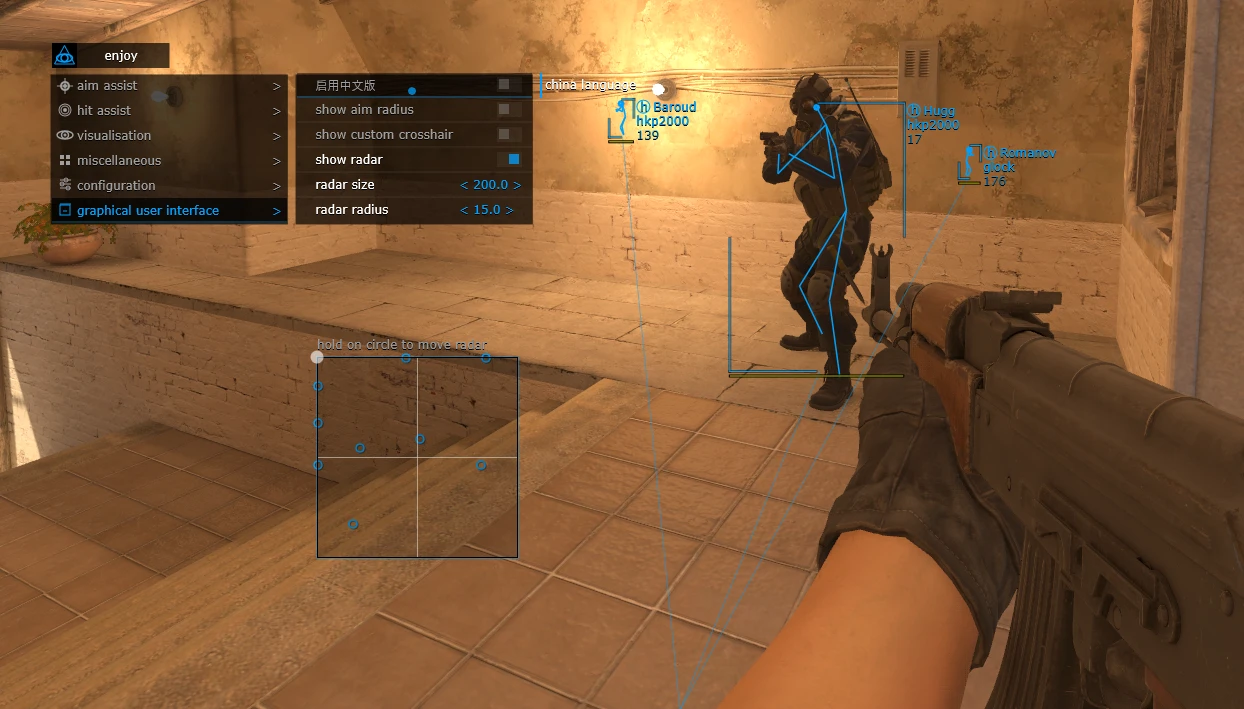
- Gui Menu language selection / Select menu language. Available languages: English / Chinese
- Show aim radius / Display the aimbot operating radius
- Show custom crosshair / Display a crosshair in the center of your screen
- Show radar / Enable radar. To move the radar on the screen, hover the mouse pointer over the radar, hold the left mouse button, and drag it.
- Radar size / Set the radar size
- Radar radius / Set the radar radius
- The program’s functionality may be changed at any time at the developer’s discretion, but we always try to keep the information up to date.
NFA / PRODUCT GUIDE
Mason External CS2: Features, Plans and Support
Use this NFA guide to compare the listing's features, system requirements and access options. Mason External CS2 has its own product description; the features and delivery instructions for another listing should not be assumed to apply.
Read the exact feature list
NFA's software catalog includes different games, providers and tool types. Read this product's feature description and screenshots to see what is listed for the current item. Visual options, aim settings, resource information and configuration controls vary between products. A product name alone does not establish that every feature found elsewhere is included.
The internal or external label describes the product type. It does not replace the operating-system, hardware or setup requirements published for this listing.
Compare the system requirements
Check the supported operating system, processor, display mode and any USB or other prerequisites. Product-specific instructions take priority over assumptions from an older Rust, CS2 or other game listing. If a requirement is unclear, ask NFA before ordering so that you can confirm whether the published setup matches your computer.
Daily, weekly and monthly access
Available plans are shown in the variant picker. Some products use different periods or offer additional options; only the variants listed on this page are available for this purchase. Compare the full price for your chosen duration and review any activation or access conditions. Check the final checkout total and selected variant before payment.
Product status and updates
Review the current product status before buying and use the NFA status page to compare listings. A status label is a published product update, not a guarantee of future compatibility or freedom from restrictions. Game updates can affect availability. Contact support for clarification if the current information does not answer your question.
Delivery and support
After payment, consult the order page and delivery email for the key or instructions supplied with your purchase. Follow the guide for this exact product and plan. Keep your order reference when requesting help through NFA's support link, and do not post delivered keys, account details or payment information publicly.
Mason External CS2 — purchasing FAQ
Does every NFA software product include the same features?
No. Read the description of the selected product. Features differ between games, providers and tool types.
Where can I see current plans and access periods?
Use the variant picker on this page for the durations, prices and availability currently offered.
Is a product status label a permanent guarantee?
No. It describes the published current status. Compatibility and availability can change after updates.
How do I receive the product after payment?
Check the completed order page and order email for the delivered key, access information and product-specific instructions.
Where can I get help with my order?
Use NFA's support link with your order reference and product name. Keep delivered keys and account details private.