Exodus Dead by Daylight External
UNDETECTEDGeneral Information
- Game: Dead by Daylight
- Access options: 1 Day / 3 Days / 7 Days / 30 Days
- Delivery: Automatic license key
Aimbot
- Target hold, prediction and knocked-player filtering
- Crosshair display
- Visibility check is temporarily unavailable
Survivor & Killer ESP
- Boxes, skeletons, snaplines, names and distance
- Character labels and aura displays
Object ESP
- Generator and exit-gate progress
- Pallets, windows, hooks and hatch status
- Totems, chests and distance indicators
Additional Tools
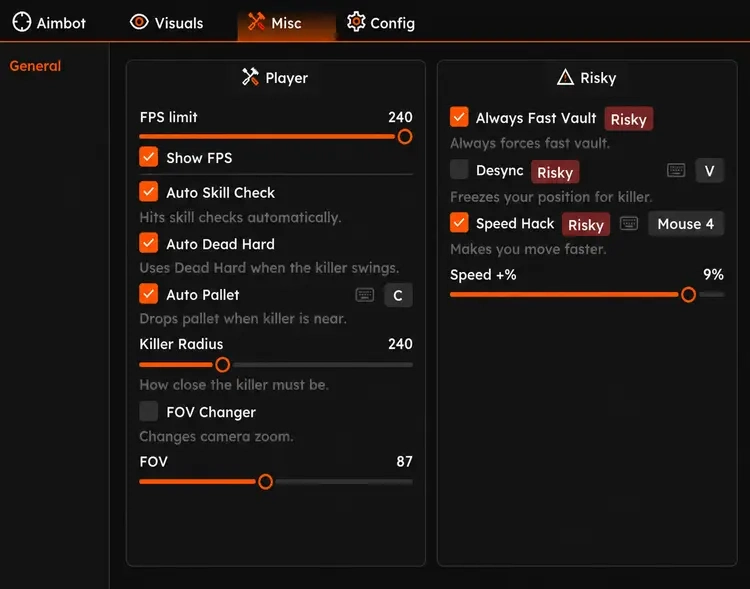
- Auto skill checks, Dead Hard and pallet options
- Camera FOV and fast-vault controls
- Desync and adjustable movement speed
Requirements
- Operating system: Windows 10 / Windows 11 — check the setup guide for exact builds
- Processor: Intel / AMD
- See Setup Guide for launch order and product-specific requirements
- 16 GB RAM; compatible overlay software required
Exodus Dead by Daylight External — Setup Guide
Prepare Medal’s overlay and follow the Exodus initialization and restart sequence for Dead by Daylight.
Open the full NFAccount guide · Download loader · NFAccount support
1. Check the Exodus requirements
Use a supported Windows 10 or Windows 11 Home/Pro build in the documented 1909–25H2 range, an Intel or AMD processor, and at least 16 GB RAM.
Virtualization is required. There are additional firmware and Windows sign-in prerequisites that can depend on your hardware, including Secure Boot off on Intel systems. Ask NFAccount support to check your configuration before changing firmware or account settings.
2. Prepare Medal and the local folder
Install or open Medal and enable its in-game overlay before starting Dead by Daylight.
Close Dead by Daylight and Steam. Download and extract the Exodus loader into a local folder. Do not run it from the archive, OneDrive, or a USB drive.
3. Initialize the license
Run the loader as administrator. Paste the license from your NFAccount order using the loader’s right-click paste input, then press Enter.
Save other work before initialization. The first setup may automatically restart the PC more than once; allow the sequence to finish.
Wait until the loader command window closes before opening the game. Keep Medal’s overlay available for the session.
4. Open the menu
Launch Dead by Daylight and press INSERT to open the interface. The menu can take 1–3 minutes to appear during the initial session.
Check your keybinds and save a configuration after selecting the visual and other options you intend to use.
5. Memory or overlay errors
For a memory-map error, confirm the RAM requirement and that the loader is in an extracted local folder. Send the complete message to support rather than repeating initialization indefinitely.
If the overlay is shifted or absent, check Medal, the active game monitor, and taskbar placement. Include the Windows build and order ID in your NFAccount ticket.
NFA / PRODUCT GUIDE
Exodus Dead by Daylight External: Features, Plans and Support
Use this NFA guide to compare the listing's features, system requirements and access options. Exodus Dead by Daylight External has its own product description; the features and delivery instructions for another listing should not be assumed to apply.
Read the exact feature list
NFA's software catalog includes different games, providers and tool types. Read this product's feature description and screenshots to see what is listed for the current item. Visual options, aim settings, resource information and configuration controls vary between products. A product name alone does not establish that every feature found elsewhere is included.
The internal or external label describes the product type. It does not replace the operating-system, hardware or setup requirements published for this listing.
Compare the system requirements
Check the supported operating system, processor, display mode and any USB or other prerequisites. Product-specific instructions take priority over assumptions from an older Rust, CS2 or other game listing. If a requirement is unclear, ask NFA before ordering so that you can confirm whether the published setup matches your computer.
Daily, weekly and monthly access
Available plans are shown in the variant picker. Some products use different periods or offer additional options; only the variants listed on this page are available for this purchase. Compare the full price for your chosen duration and review any activation or access conditions. Check the final checkout total and selected variant before payment.
Product status and updates
Review the current product status before buying and use the NFA status page to compare listings. A status label is a published product update, not a guarantee of future compatibility or freedom from restrictions. Game updates can affect availability. Contact support for clarification if the current information does not answer your question.
Delivery and support
After payment, consult the order page and delivery email for the key or instructions supplied with your purchase. Follow the guide for this exact product and plan. Keep your order reference when requesting help through NFA's support link, and do not post delivered keys, account details or payment information publicly.
Exodus Dead by Daylight External — purchasing FAQ
Does every NFA software product include the same features?
No. Read the description of the selected product. Features differ between games, providers and tool types.
Where can I see current plans and access periods?
Use the variant picker on this page for the durations, prices and availability currently offered.
Is a product status label a permanent guarantee?
No. It describes the published current status. Compatibility and availability can change after updates.
How do I receive the product after payment?
Check the completed order page and order email for the delivered key, access information and product-specific instructions.
Where can I get help with my order?
Use NFA's support link with your order reference and product name. Keep delivered keys and account details private.