Akuma Halloween The Game Internal
UNDETECTEDGeneral Information
- Game: Halloween The Game
- Access options: 1 day / 7 days / 30 days / lifetime
- Delivery: Automatic license key
Aimbot & Player Visuals
- Aim FOV, smoothing, speed, stickiness and target priorities
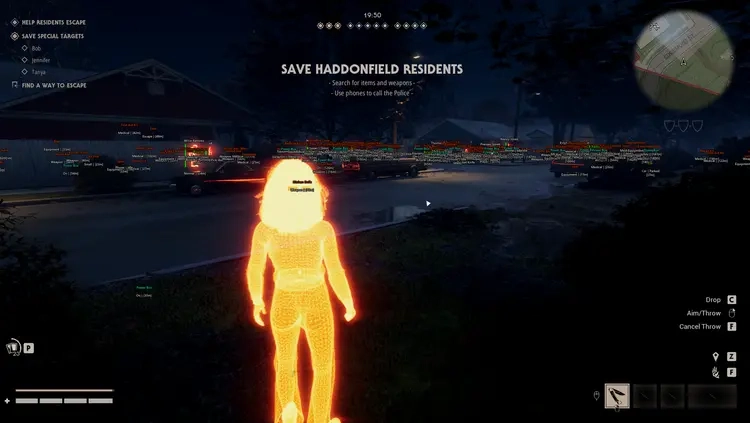
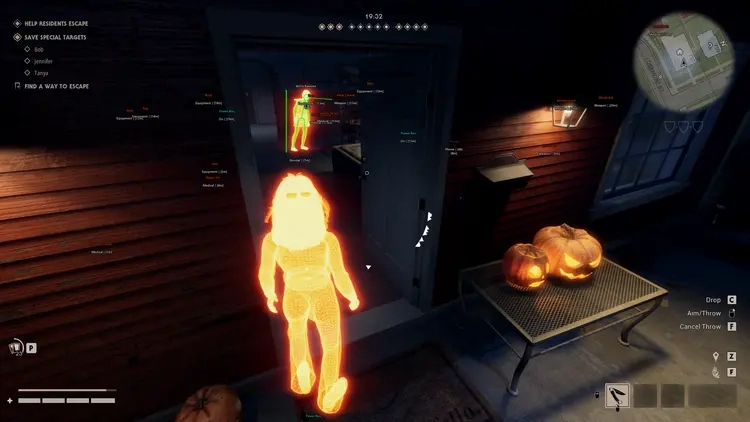
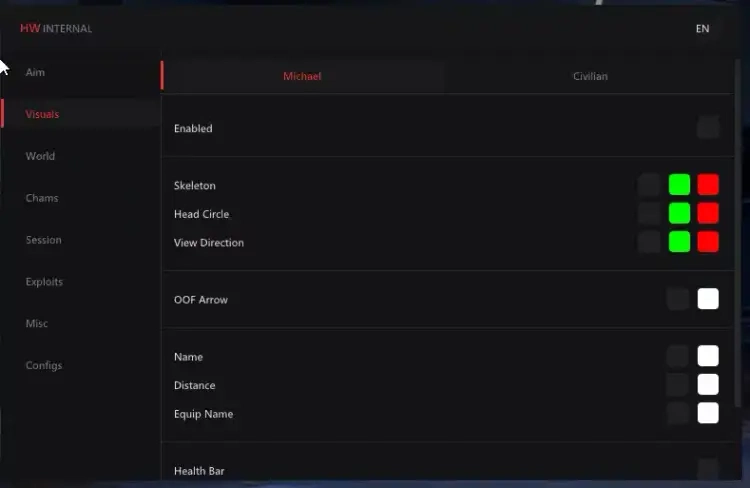
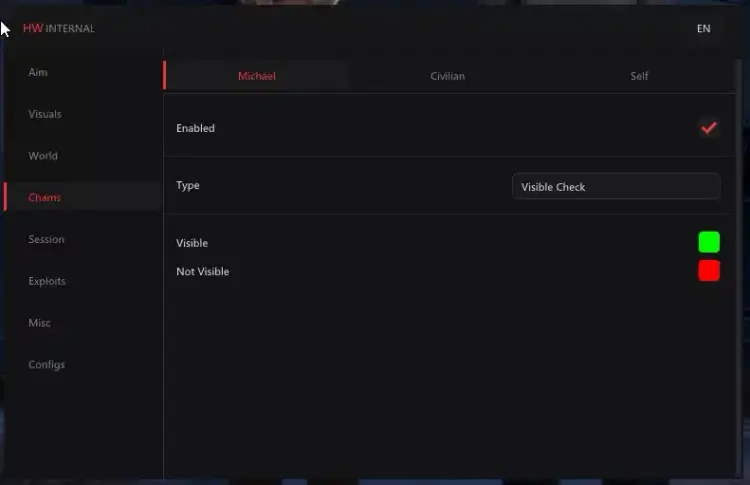
- Civilian and Michael ESP with skeletons, health and equipment
- Off-screen arrows, visibility colours and chams
World Visuals
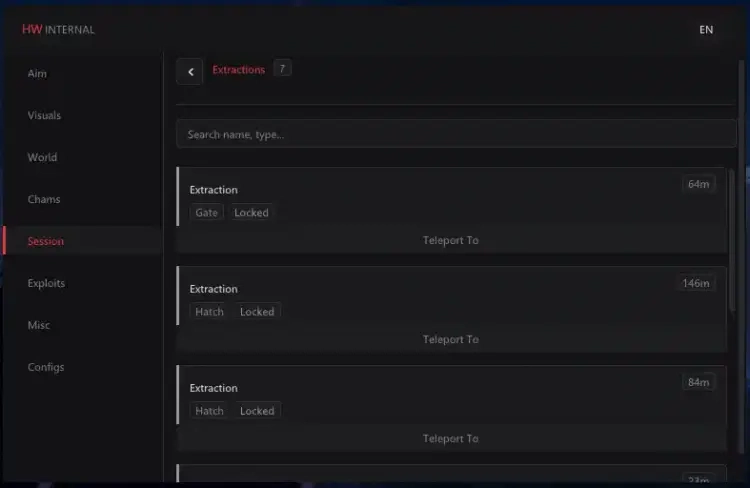
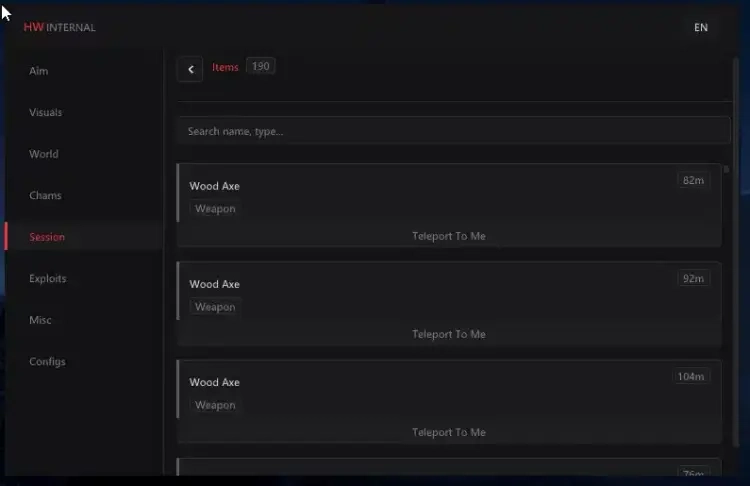
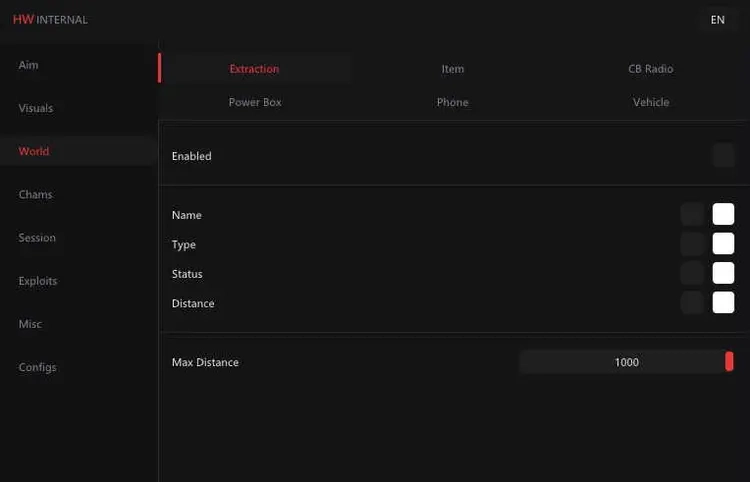
- Extraction points, items, radios and power boxes
- Phone and vehicle labels, status and distance
- Combat-mode category filters
Additional Tools
- Cosmetic, character, weapon and perk unlock options
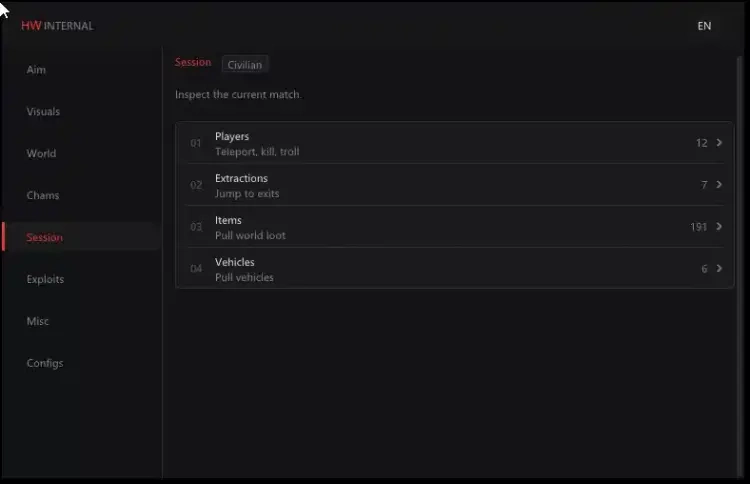
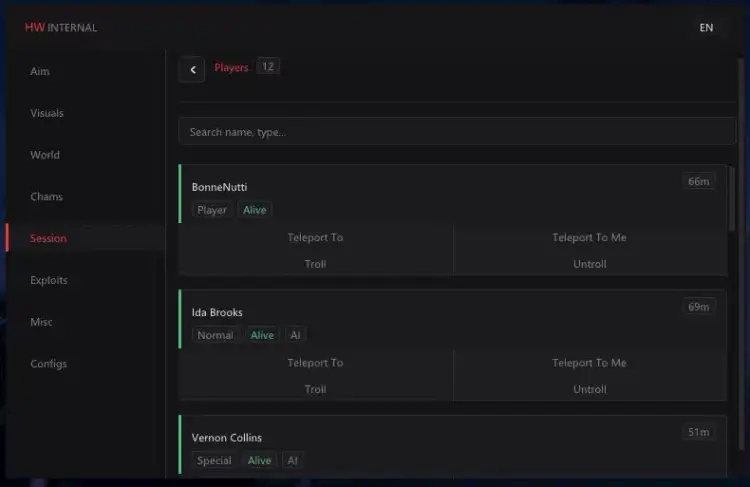
- Session, movement and interaction controls
- Skill-check options, custom crosshair and FOV changer
- Keybind list, menu customisation and saved profiles
Requirements
- Operating system: Windows 10 / Windows 11 — check the setup guide for exact builds
- Processor: Intel / AMD
- See Setup Guide for launch order and product-specific requirements
Akuma Halloween The Game Internal — Setup Guide
Activate Akuma Halloween, complete the main-menu initialization, and configure its separate player visuals.
Open the full NFAccount guide · Download loader · NFAccount support
1. Prepare Halloween The Game
This guide is for the Steam edition on a supported Windows 10/11 system. The product does not include an HWID spoofer.
Install the Microsoft Visual C++ 2015–2022 x64 and x86 runtimes and DirectX components if needed. Finish the game’s own initial setup, then close both the game and its launcher.
2. Activate the Akuma loader
Download the current loader using the button on this page. Save it to a local folder, open it as administrator, and enter the license supplied with your NFAccount order.
Wait for the prompt asking you to launch Halloween and press F2 in the main menu. Do not launch ahead of this prompt.
3. Initialize in the main menu
Open the game through Steam and wait for the main menu or lobby. Press F2 once as requested.
Leave the game in that screen while initialization finishes. Allow up to 60 seconds on slower systems.
Press INSERT to open or close the menu after initialization. F2 starts injection; INSERT is the menu control.
4. Set your visual profiles
Review the separate civilian and Michael visual categories rather than assuming one setting controls both.
Check the hotkeys and enabled options, then save a profile for your preferred configuration. Reload the profile when changing sessions if needed.
5. When the menu does not appear
Check for the initialization-complete message in the loader. Remain in the lobby while it is working, and close competing overlay applications if there is an interface conflict.
For help, send NFAccount support your order ID, Windows build, and the exact message or a screenshot with the license hidden. Do not keep repeating F2 during an unfinished initialization.
NFA / PRODUCT GUIDE
Akuma Halloween The Game Internal: Features, Plans and Support
Use this NFA guide to compare the listing's features, system requirements and access options. Akuma Halloween The Game Internal has its own product description; the features and delivery instructions for another listing should not be assumed to apply.
Read the exact feature list
NFA's software catalog includes different games, providers and tool types. Read this product's feature description and screenshots to see what is listed for the current item. Visual options, aim settings, resource information and configuration controls vary between products. A product name alone does not establish that every feature found elsewhere is included.
The internal or external label describes the product type. It does not replace the operating-system, hardware or setup requirements published for this listing.
Compare the system requirements
Check the supported operating system, processor, display mode and any USB or other prerequisites. Product-specific instructions take priority over assumptions from an older Rust, CS2 or other game listing. If a requirement is unclear, ask NFA before ordering so that you can confirm whether the published setup matches your computer.
Daily, weekly and monthly access
Available plans are shown in the variant picker. Some products use different periods or offer additional options; only the variants listed on this page are available for this purchase. Compare the full price for your chosen duration and review any activation or access conditions. Check the final checkout total and selected variant before payment.
Product status and updates
Review the current product status before buying and use the NFA status page to compare listings. A status label is a published product update, not a guarantee of future compatibility or freedom from restrictions. Game updates can affect availability. Contact support for clarification if the current information does not answer your question.
Delivery and support
After payment, consult the order page and delivery email for the key or instructions supplied with your purchase. Follow the guide for this exact product and plan. Keep your order reference when requesting help through NFA's support link, and do not post delivered keys, account details or payment information publicly.
Akuma Halloween The Game Internal — purchasing FAQ
Does every NFA software product include the same features?
No. Read the description of the selected product. Features differ between games, providers and tool types.
Where can I see current plans and access periods?
Use the variant picker on this page for the durations, prices and availability currently offered.
Is a product status label a permanent guarantee?
No. It describes the published current status. Compatibility and availability can change after updates.
How do I receive the product after payment?
Check the completed order page and order email for the delivered key, access information and product-specific instructions.
Where can I get help with my order?
Use NFA's support link with your order reference and product name. Keep delivered keys and account details private.