Rust Cheats Compared: Player ESP, World Visuals and Scripts
Compare published Rust cheat features at NFAccount, including player ESP, world markers, radar, profiles and recoil scripts. Review editions and plans.
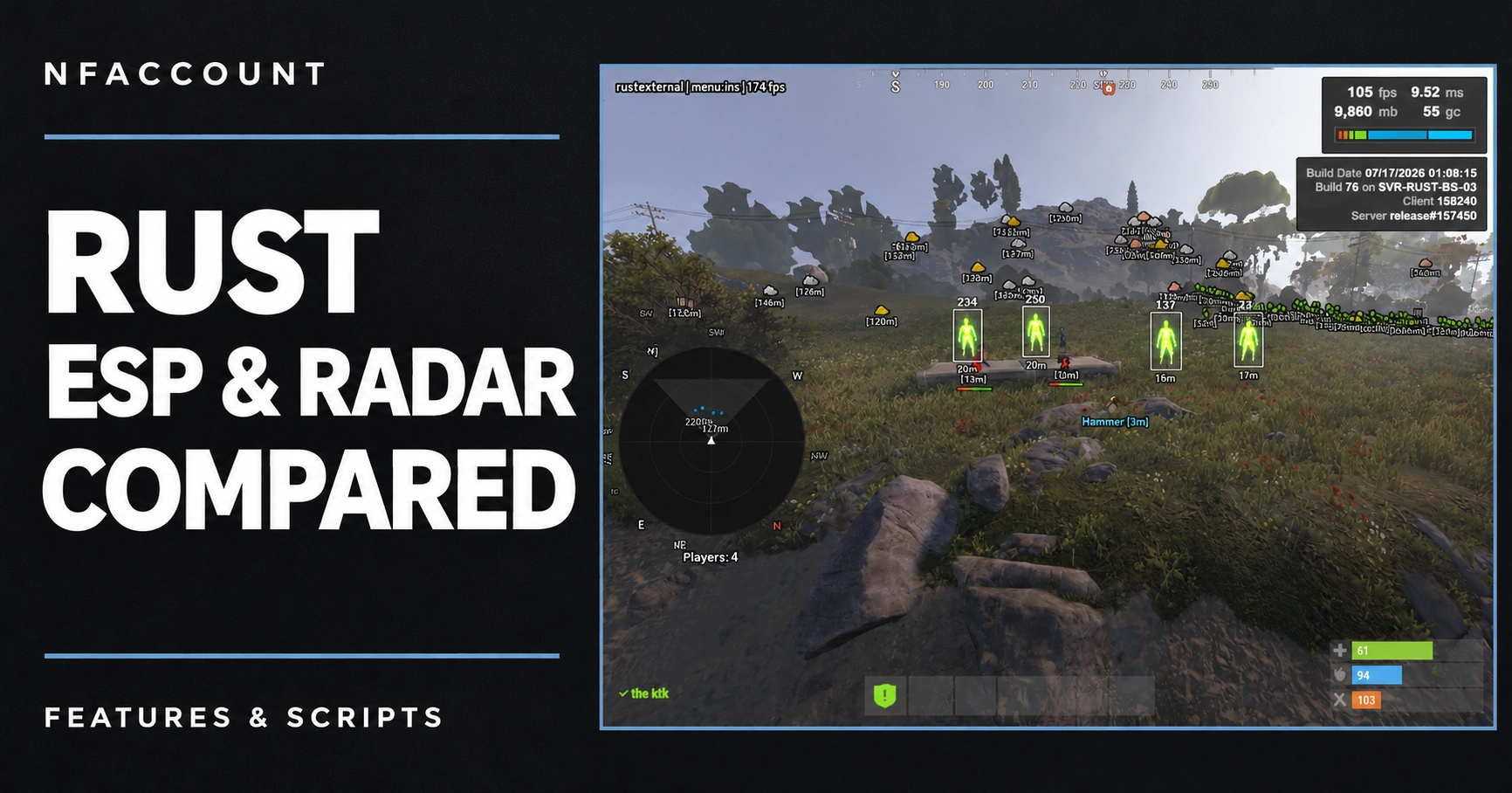
Rust product listings can focus on very different parts of the interface: player information, world-object markers, radar, weapon profiles or recoil scripts. Compare those feature groups before comparing access prices. The examples below summarize published NFAccount listings, rather than a performance test or a ranking.
Compare the main feature groups
Product | Published highlights |
|---|---|
Player skeletons and health bars, resource and crate markers, radar and named profiles. | |
Player names, skeletons, 2D/3D boxes, view direction and team filters. | |
Ore, crates, animals, transport, player visuals and radar colors. | |
Player ESP, hitbox choices, weapon controls and Windows 10/11 requirements. | |
Player health, skeletons, hotbar, radar and separate display colors. | |
Adjustable spray strength and timing, weapon detection and automatic switching. |
Player ESP and world markers answer different questions
Player visuals describe information attached to players: name, health, held weapon, skeleton or distance. World visuals cover objects such as resources, crates, vehicles and dropped items. If you are comparing two editions, make a separate checklist for each group rather than treating “ESP” as one identical feature.
Then compare display controls. Color settings, distance limits and category filters determine which information appears. Saved configurations can help organize different display preferences where they are included in the listing.
A script is a different product type
The Rust Script listing focuses on recoil patterns, adjustable strength and timing, and weapon detection. That feature set should not be read as a promise of the player ESP, world visuals or radar found in a separate full software listing. Compare the actual functions of the product you are selecting.
Check the exact edition and requirements
Internal and external editions are separate listings. The provider name alone does not establish the same features across both. Compare the selected product’s Windows, processor, display and peripheral requirements. Where a prerequisite is unclear, ask support about the named edition rather than applying instructions from another Rust product.
Use the current feature list and screenshots together. Images help you judge the menu and visual presentation; the written description is the place to check whether a specific category or control is offered.
Compare like-for-like durations
Review the current variant picker for each shortlisted product. Match the access period before comparing the price, and distinguish a license from any separately listed service. A daily starting price should not be compared directly with the total cost of a monthly plan.
Check the published status and selected variant before checkout. Product availability and compatibility may change after updates. Keep the correct order guide and product name available when contacting support.
Build your Rust shortlist
Start with the Rust group in the product catalog, select the feature categories you need, then compare requirements and matching plans. The software buying guide provides a general checklist for the final review.
Published at Nov 12, 2026