Game Cheats, ESP and Radar: How to Compare Features
Compare ESP, radar, chams, aim controls and access plans across NFAccount game cheats. Understand product editions and check features before choosing.
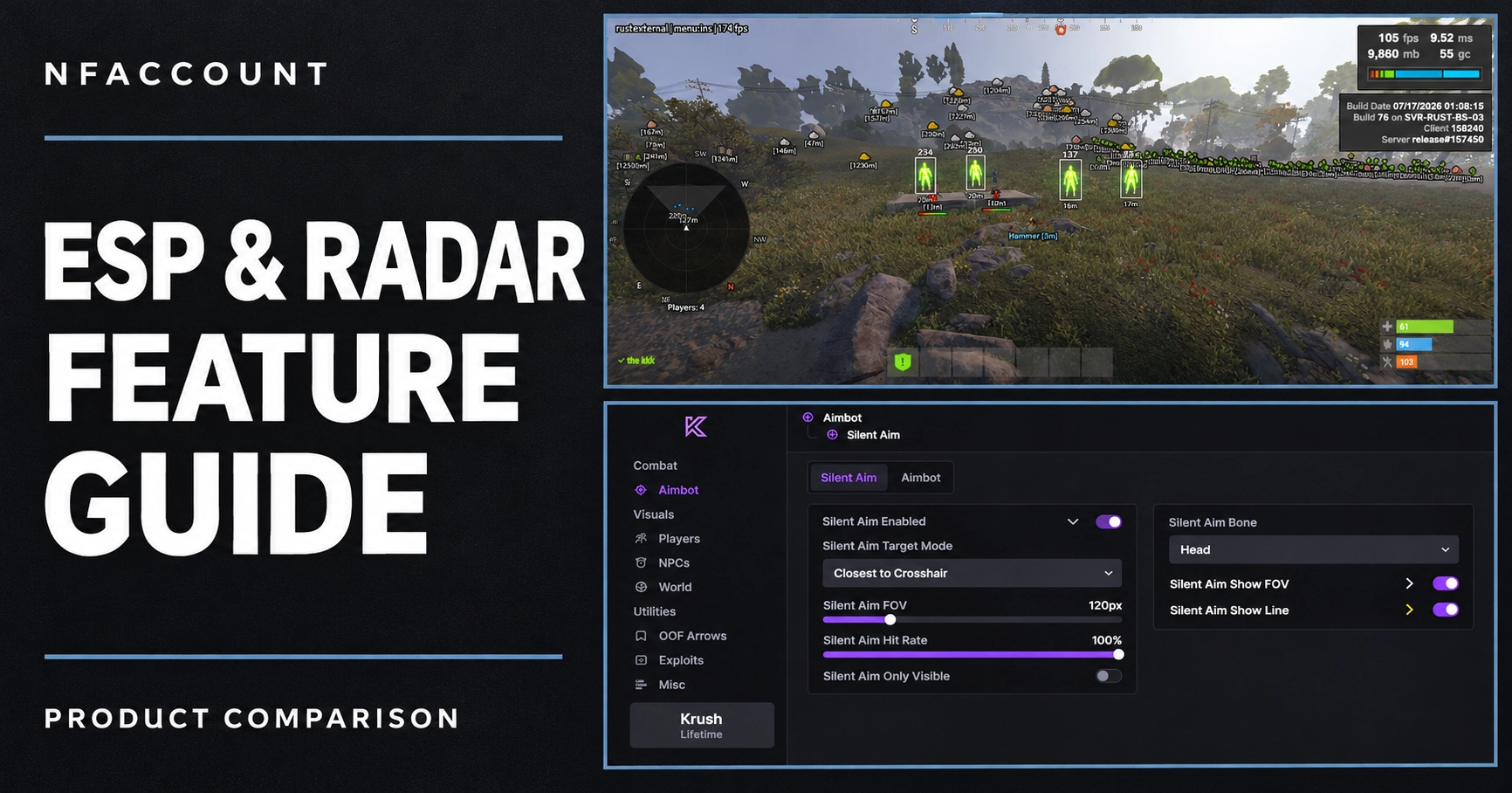
A useful comparison starts with the exact game and product edition. Two listings from the same provider can have different visuals, controls and access plans. NFAccount separates named products so you can compare their published features, screenshots and requirements before selecting a license.
ESP, chams and radar describe different views
ESP is the label commonly used for extra on-screen information such as names, health, distance, equipment or world-object markers. Chams describes character or object highlighting. Radar presents information in a map or directional view. A product may include more than one of these, but a category name alone does not establish which features it has.
For example, Krush ARC Raiders External lists player skeletons, health and shield bars alongside extraction status and ARC categories. Arcane ARC Raiders Browser Radar focuses on a shared browser radar with player, ARC, extraction, item and container information. Those are different interfaces, even though both listings concern ARC Raiders.
Match the edition before comparing the price
Internal, external, browser radar and script are product-type labels. They do not tell you the complete feature set or the supported Windows build. Compare the full product name, then review its written list. A visuals-only edition should be compared with another visuals-focused product rather than assumed to include every control in a larger package.
The distinction is visible in the Wardogs catalog: Akuma Wardogs Chams lists faction colors and visibility-based player highlighting, while Akuma Wardogs Full lists additional player information, item categories and aiming controls. Choose according to the features you need, rather than treating the shorter name as an equivalent edition.
Use the same questions for every shortlist
- Which player and world objects are displayed? Look for the actual categories, such as health, equipment, vehicles or containers.
- Can the display be customized? Compare colors, distance limits, visibility settings, fonts and saved configurations where listed.
- Does the edition list controller support? A keyboard keybind does not by itself establish native controller compatibility.
- Which game platform and Windows builds are listed? Match the exact requirements for this product.
- Which access durations are offered? Compare the same duration, currency and quantity before deciding on price.
Read screenshots alongside the written features
Screenshots are useful for comparing menu organization, ESP appearance and available screen space. The written feature list identifies what the listing offers. If an image and its description disagree, ask support about the exact edition before ordering. A shared provider logo or similar interface is not evidence that every option is included.
Published status can change after a game or software update. Check the status page and the product requirements together. A status label does not guarantee future compatibility or the absence of account restrictions.
Compare access plans and delivery
Short and long plans can have different total costs. Match a daily plan with another daily plan, or compare the same monthly duration. Check whether a listed option is software access, a separate service or another edition. The final selected variant and checkout total are the relevant purchase details.
The completed order page supplies the delivery information for that purchase. Keep the product name and order reference when requesting support, and use the guide associated with that edition.
Explore the catalog
Browse the NFAccount product catalog by game, read the published product status, or use the software buying guide for a second check before choosing.
Published at Nov 12, 2026